
How to Use Brewology for PSP, PS3, and PS Vita
Quick Answer: Brewology allows users to download and install homebrew tools for PSP, PS3, and PS Vita by selecting a device, checking compatibility, and installing files safely.
Brewology gives users direct access to PlayStation homebrew tools, including custom firmware (CFW), plugins, and emulator environments.
If you want to run emulators, install plugins, or customize your console, Brewology provides a structured starting point. The process is simple once you understand the workflow.
Why Users Choose Brewology
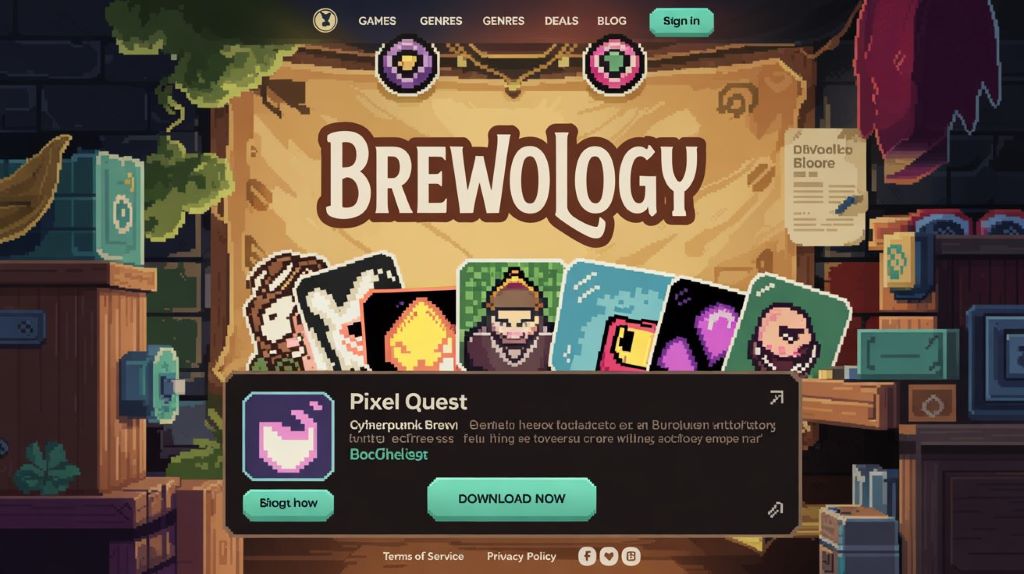
Many users rely on Brewology because it saves time and reduces confusion. Instead of browsing multiple sources, they can find everything organized by device and category.
The platform focuses on clarity. Each tool includes version details and compatibility notes. This helps users avoid errors before they happen.
- Organized tools for PSP, PS3, and PS Vita
- Quick access to updates
- Clear download structure
- Reduced risk of outdated files
This structure makes Brewology useful for both beginners and experienced users.
Step-by-Step Guide to Download from Brewology
The download process follows a simple sequence. Each step matters because compatibility issues often come from skipped checks.
- Open Brewology in your browser
- Select your PlayStation device (PSP, PS3, or PS Vita)
- Browse categories such as plugins, emulators, or firmware tools
- Choose a tool based on your needs
- Review version and compatibility details
- Download the file
Always pause before downloading. Read the description and confirm that the tool supports your firmware version.
How to Install Brewology Tools
Installation depends on the type of tool and the console you use. However, the general process follows a consistent pattern.
First, transfer the downloaded file to your device. Most users use a USB connection or memory card. Then place the files in the correct directory based on the tool instructions.
After that, activate the tool through your console’s custom firmware environment. Some tools require a restart to take effect.
Clear instructions are important here. Skipping steps can lead to errors or failed installations.
Best Brewology Tools to Start With
New users often ask which tools to install first. The answer depends on your goal. Some tools focus on gaming, while others improve performance or add system features.
- Emulators: Run retro games from older systems
- Custom firmware tools: Unlock advanced system control
- Plugins: Add new features or improve performance
- File managers: Organize files directly on your console
Start with simple tools. Test each one before adding more. This helps you understand how each tool affects your system.
Common Errors and How to Fix Them
Most problems come from compatibility issues. Users often install tools that do not match their firmware version.
Here are the most common issues and solutions:
- Tool not working: Check firmware compatibility
- System crash: Remove recently installed plugin
- Installation fails: Verify file structure
- Missing features: Update to latest version
When errors occur, do not panic. Remove the last installed tool and test again.
Performance Tips for Better Results
Once your tools are installed, you can improve performance with a few simple practices.
- Keep your firmware updated
- Install only necessary plugins
- Avoid running too many tools at once
- Restart your system after major changes
These steps help maintain stability and reduce system slowdowns.
Advanced Tips for Experienced Users
Experienced users often combine multiple plugins to extend system capabilities. Testing each tool individually helps prevent conflicts and improves stability.
Using updated custom firmware improves compatibility with modern tools. Advanced users also monitor system performance after installing new plugins.
- Install one plugin at a time
- Track system changes after each install
- Use stable firmware versions
- Remove unused tools regularly
Safety Checklist Before Installing Any Tool
Safety should always come first. Even trusted platforms require careful use.
- Download only from reliable sources
- Check compatibility before installing
- Read installation instructions fully
- Backup important data
- Scan files when possible
Following this checklist reduces the risk of errors and protects your device.
Brewology vs Other Platforms
Brewology focuses on downloads and structured access. Other platforms serve different roles.
- Wololo: Provides news and tutorials
- PSX-Place: Offers community support
- GitHub: Hosts developer projects
Many users combine these platforms. They use Brewology for downloads and forums for guidance.
When to Use Alternatives
In some cases, Brewology may not have the latest version of a tool. Developers often release updates on other platforms first.
If you need early access or advanced support, you may check:
- Developer repositories
- Community forums
- Official project pages
However, for most users, Brewology remains the easiest starting point.
FAQs About Brewology
Is Brewology safe? Yes, when used correctly.
Do I need custom firmware? Most tools require it.
Can Brewology damage my console? Incorrect setup can cause issues.
What is the best tool to start with? Emulators and basic plugins.
Conclusion
Brewology simplifies the process of finding and installing PlayStation homebrew tools. It provides a clear structure that helps users avoid common mistakes and manage their setup with confidence.
By following the steps in this guide, you can download tools safely, install them correctly, and improve your console experience without unnecessary risks.
For a broader overview, you can explore a complete Brewology guide and a detailed safety review to understand all features and risks.